
Biology: Simulation of the Evolution of Species
by Gyula Rabai
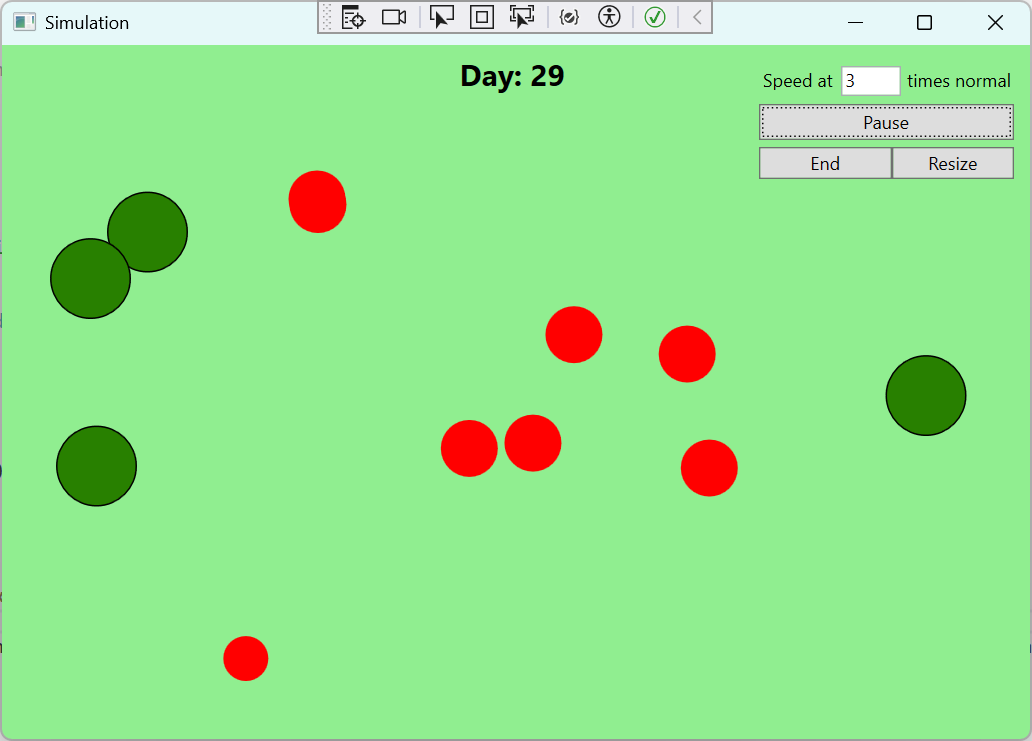
This simulation, inspired by Primer’s blob-based simulations, investigates how simulated creatures adapt to their environment. The simulation consists of red circles (animals), which search for and consume green circles (food). An animal has to consume one food to survive and 2 to reproduce. Animals have 3 traits: speed, sense radius, and size (energy storage) all of which relate to the amount of energy consumed per ‘tick’, some number of ticks constitute an hour and by default two of those constitute a day. The simulation speed is variable and is equipped with calming animations of waves if one increases the size of the window and the plants change size and color over time. The amount of food per day, the size of the island, and the length of one day are all configurable at the beginning of the simulation.
Download
Download (Exe): NaturalSelectionSim.zip
Download (Source code): Natural-Selection-Simulator.zip
Github respository
https://github.com/mrgyularabai/Natural-Selection-SimulatorScreenshot
Video
Explanation
The simulation consists of two entity types: plants (food) and animals (agents).
Each animal is visualized as a red circle with a vision radius that reveals nearby food.
- Vision radius: determines how far the animal can see food.
- Energy level: consumed each day based on the animal’s radius, speed, and size.
- Speed: how far the animal moves per tick.
How It Works
- Daily Tick: Each day the simulation updates all animals. They move, consume energy, and search for food within their vision radius.
- Energy Consumption: Energy used each day is based on the animal’s vision radius, speed, and size.
- Survival
- If an animal cannot find food before its energy reaches zero, it dies.
- Finding 1 unit of food allows the animal to survive to the next day.
- Finding 2 or more units of food triggers reproduction.
- Reproduction: Offspring receive the parent’s traits with random modifications, enabling evolution over multiple days.
The simulation can be configured to run for a specified number of days, allowing observation of population dynamics and evolutionary trends over time.
Building & Running
- Prerequisites
- Windows 11 (or later)
- Visual Studio 2022 with .NET desktop development workload
- Open the Solution: Open
NatrualSelectionSim.slnin Visual Studio. - Build: Press Ctrl + Shift + B or select Build → Build Solution.
- Run: Press F5 (Debug) or Ctrl + F5 (Run without debugging). The main window will display the island, animal entities (red circles), and food items (green). Use the UI controls to adjust simulation speed, vision radius, etc.
Configuration
Key simulation parameters can be tweaked in NatrualSelectionSim/App.config or via the UI:
InitialEnergy: Starting energy for each animal.VisionRadius: Default radius of the vision circle.MutationRate: Probability of trait mutation during reproduction.